Help
Scanning tickets
A quick guide for door staff checking guests in at a Gather event. All you need is a phone with a camera and signal. There’s nothing to install.
Before doors open
- Open the scanner link from the event host. Everyone on the door can use the same link.
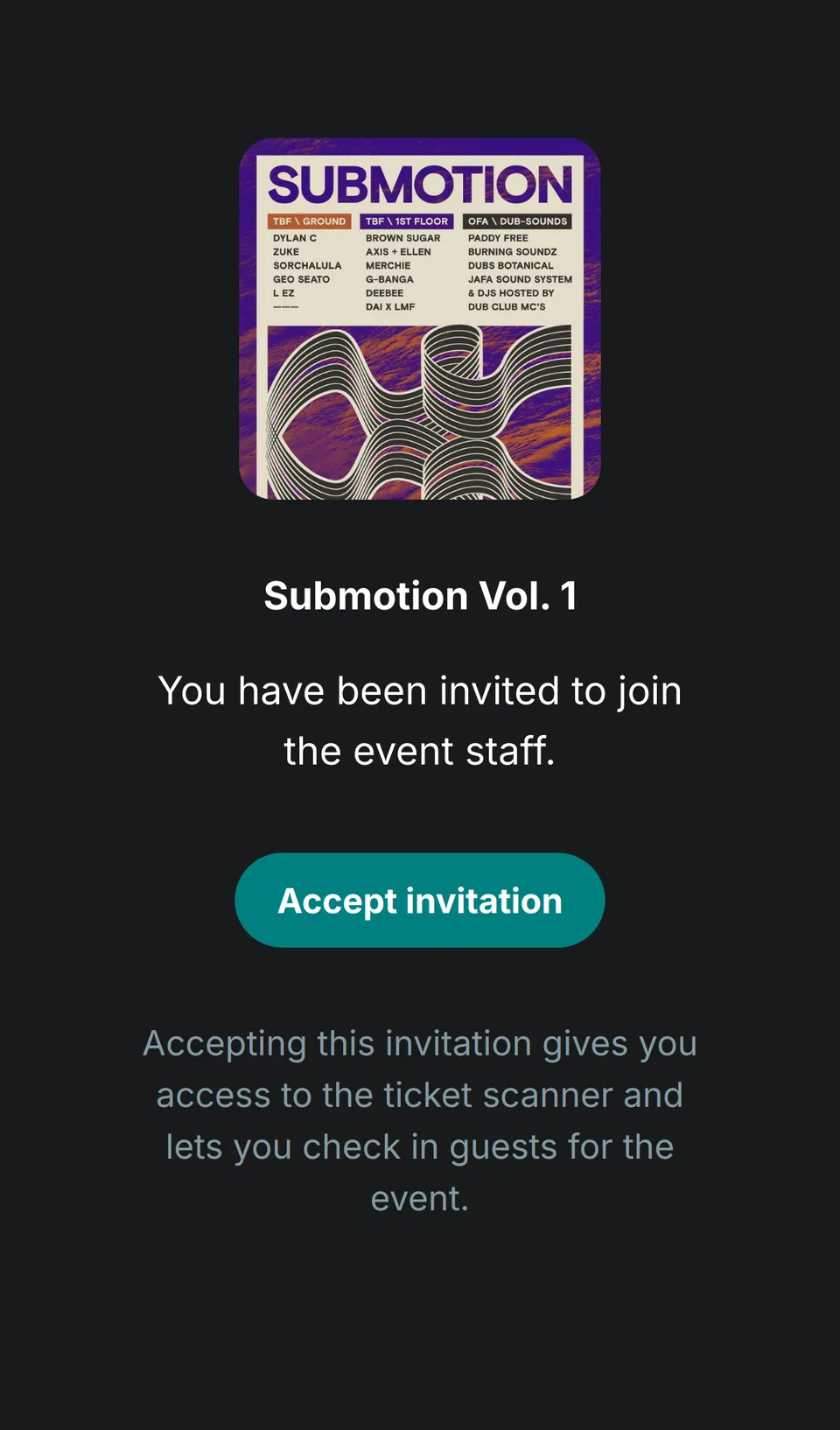
- Tap Accept invitation, then log in with your phone number. If you see Accept invitation again, tap it once more.
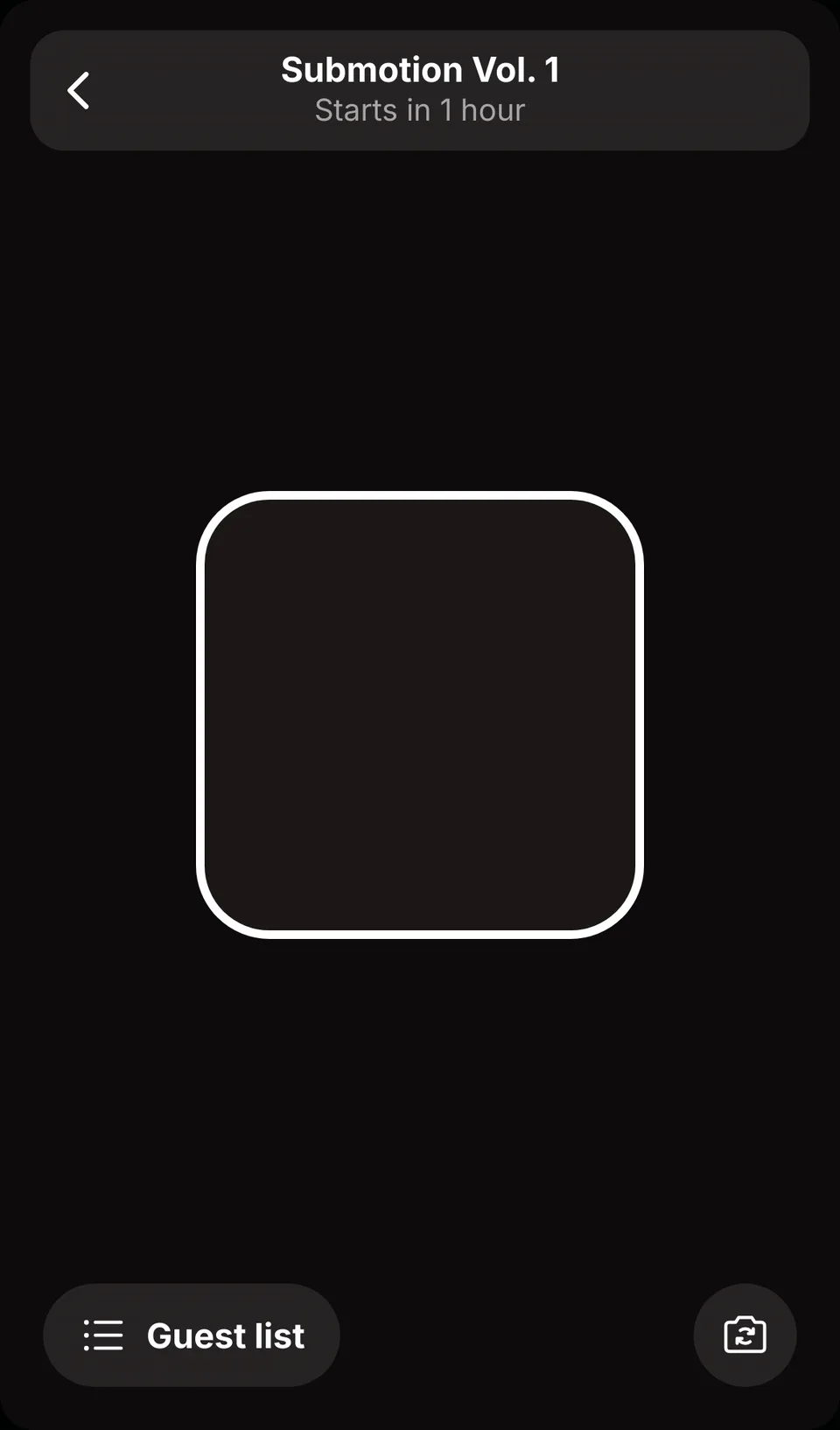
- The scanner opens. Tap Enable Camera and allow camera access when your phone asks.
- Check you have signal where you’ll be standing. The scanner needs a connection for every scan, so if the door is a dead spot, join the venue wifi.
Scanning a ticket
Point the camera at the guest’s QR code. Wait for the result at the top of the screen before you scan the next person.
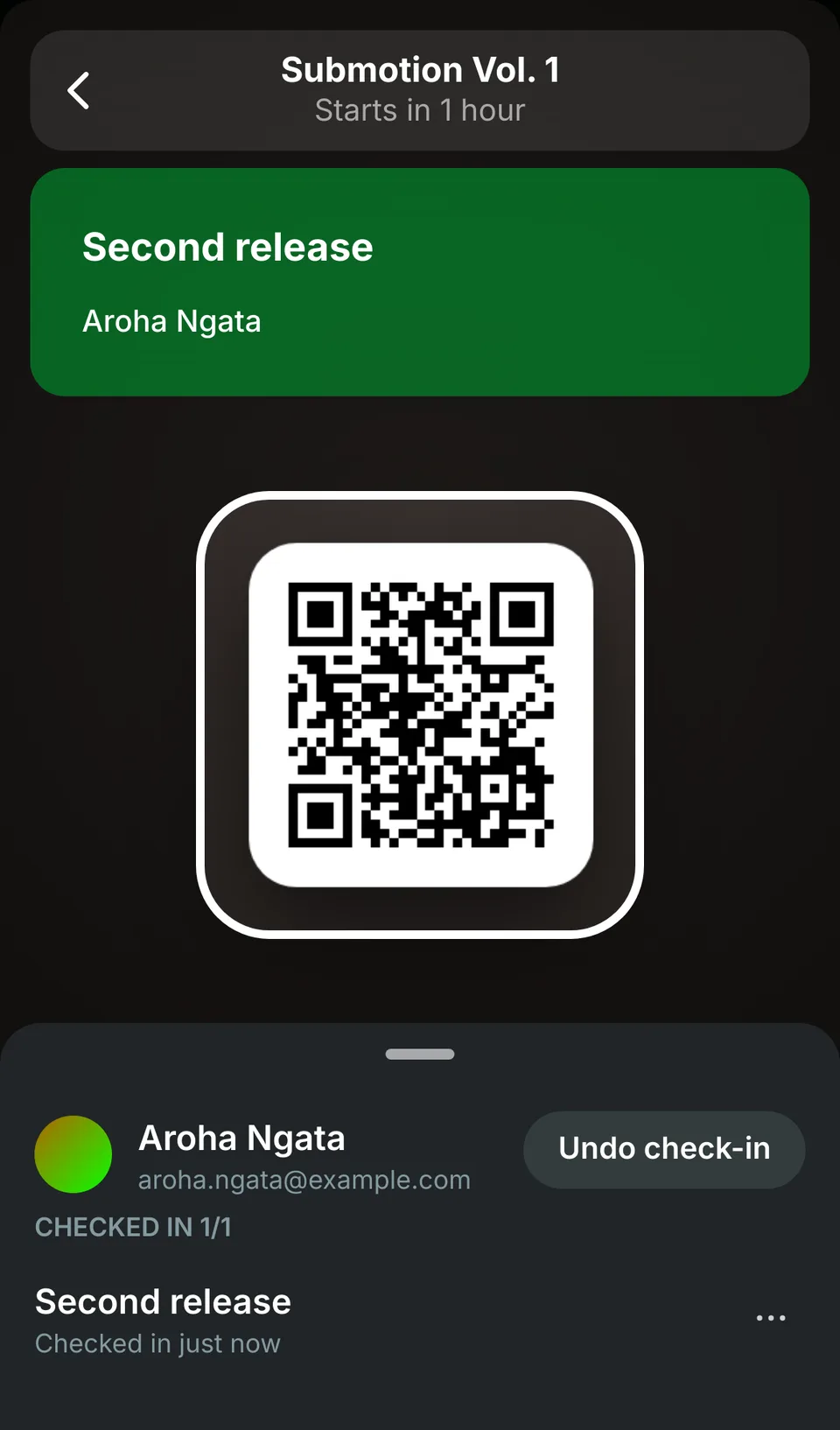
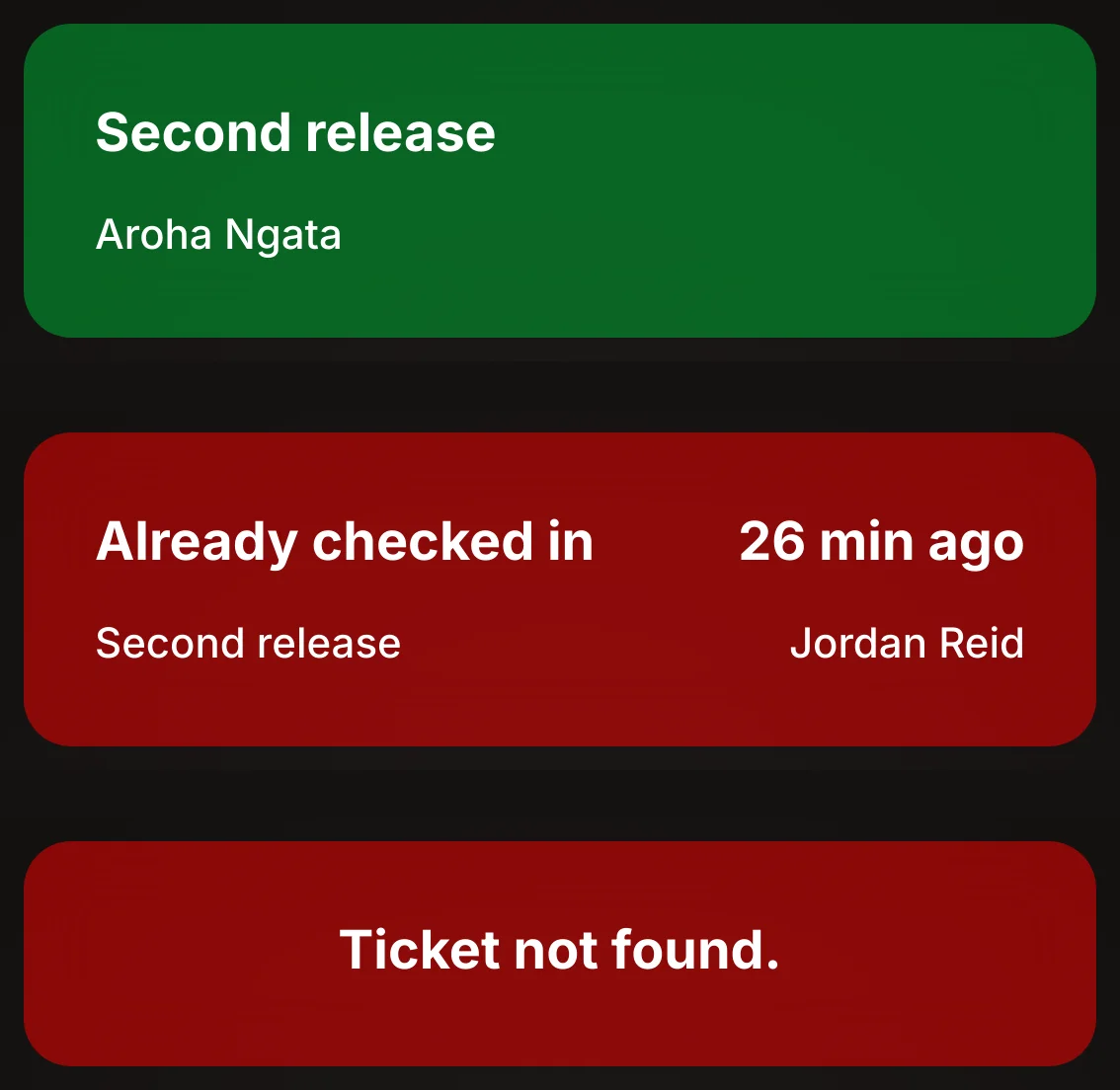
- Green: the ticket is valid. You’ll see the ticket type and the guest’s name. Let them in.
- Red, “Already checked in”: this ticket has been scanned before, and the screen shows how long ago. Check with the event host if you’re not sure what to do.
- Red, “Ticket not found”: the code is for a different event, or the ticket was cancelled. Look the guest up in the guest list, or send them to the event host.
If nothing happens, ask the guest to turn their screen brightness up and show the whole code.
If you lose signal, the scanner shows Scanning... and then nothing. There’s no error message. Once you’re back online, look the guest up in the guest list to see if they were checked in.
If a guest can’t find their ticket
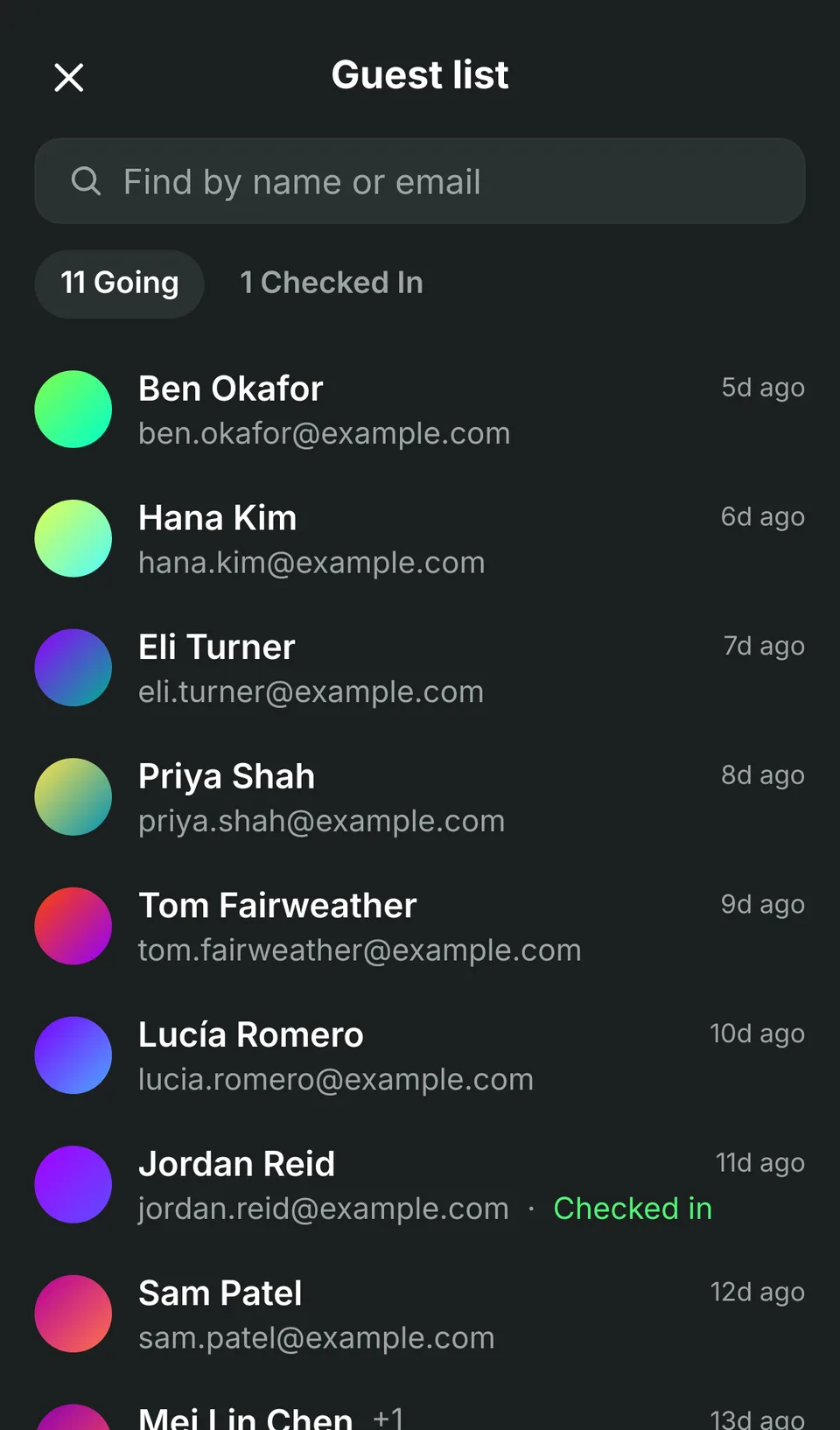
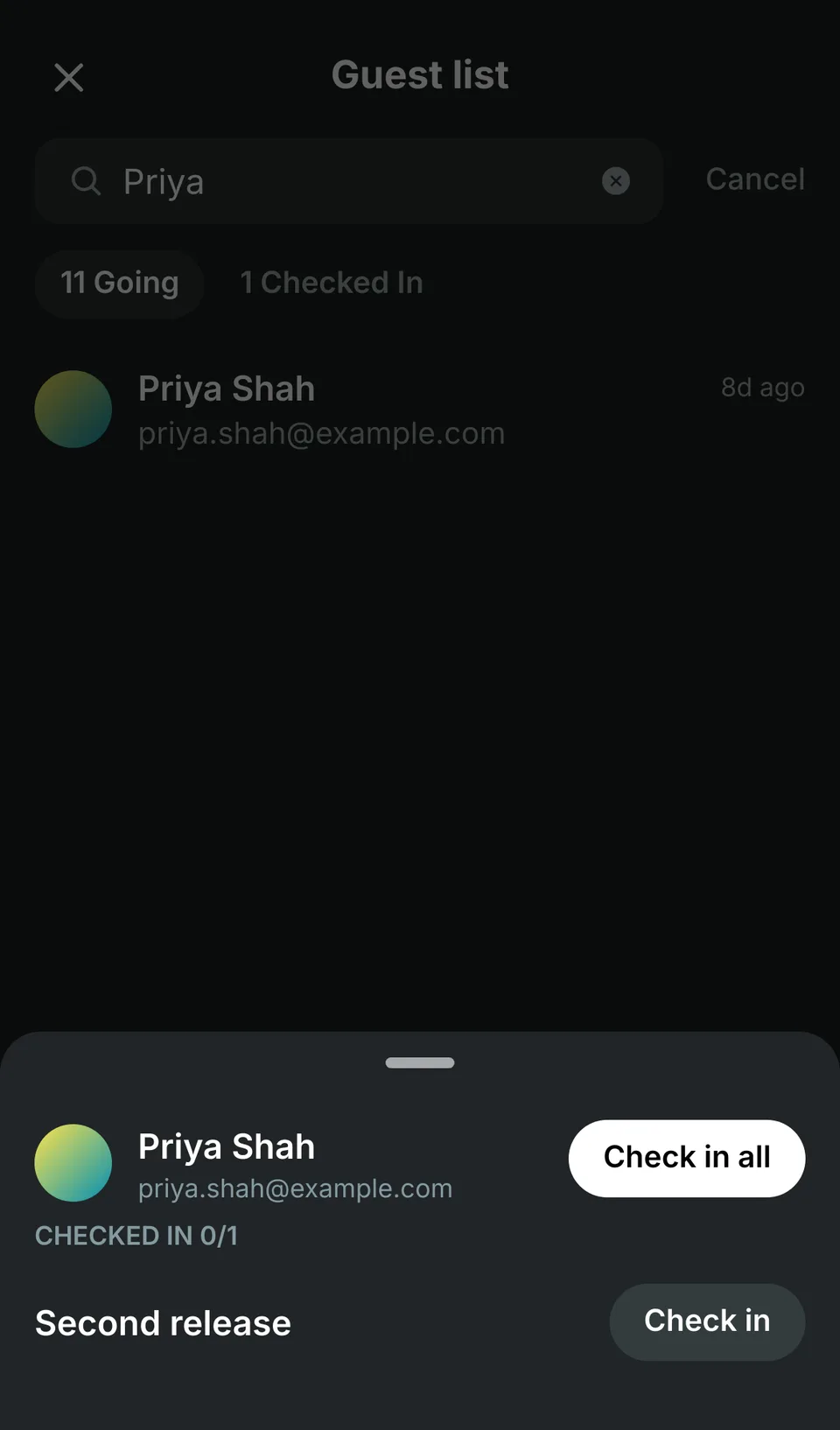
Tap Guest list in the bottom left. Search by name or email, tap the guest, then tap Check in next to their ticket.
If you lose the scanner link
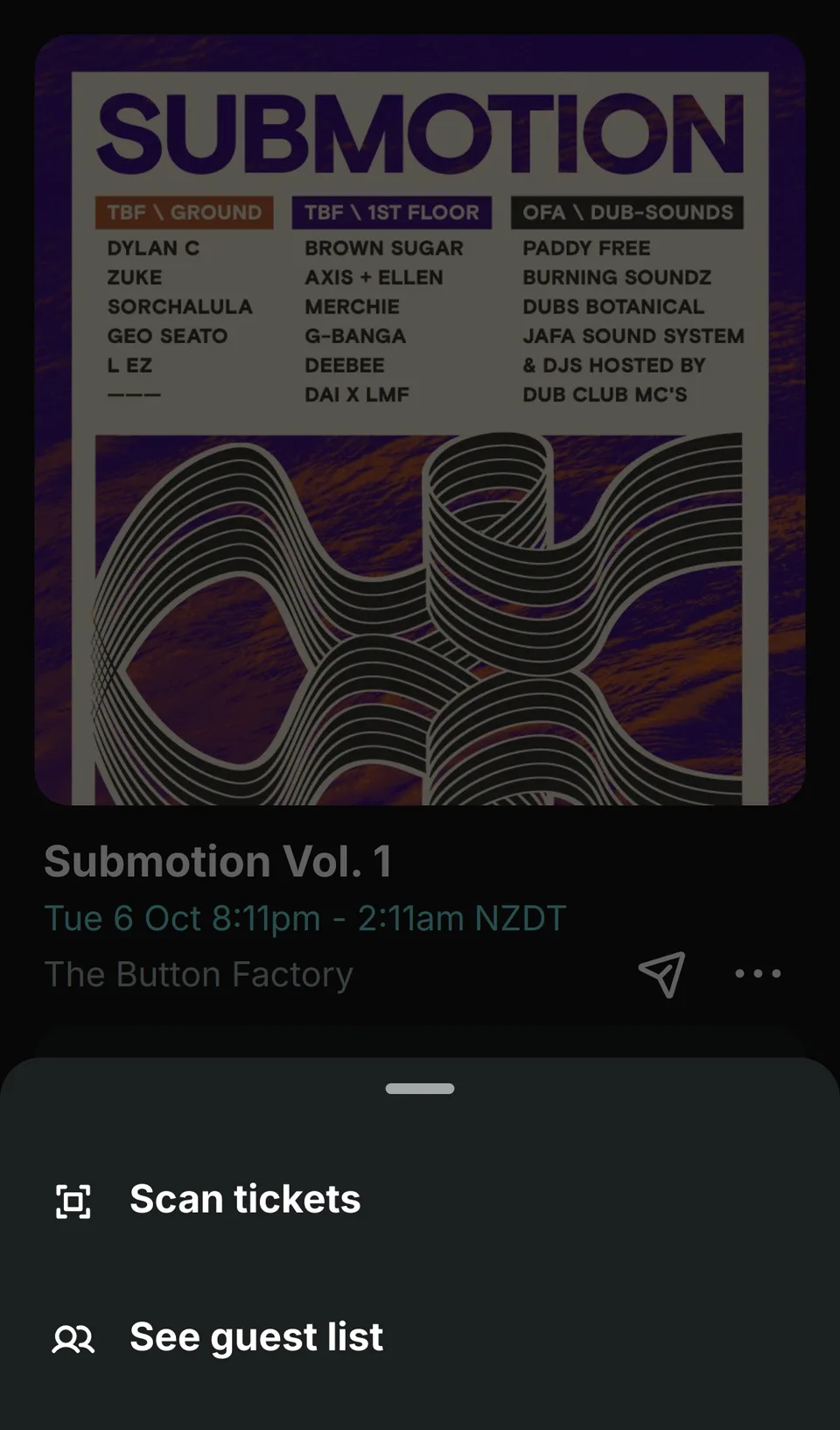
Log in with the same phone number, open the event page, tap the ⋯ menu and choose Scan tickets. This option only shows once you’ve used the scanner link.